Home / DJI RC Plus · Inspire 3
Camera-to-cloud for the DJI Inspire 3
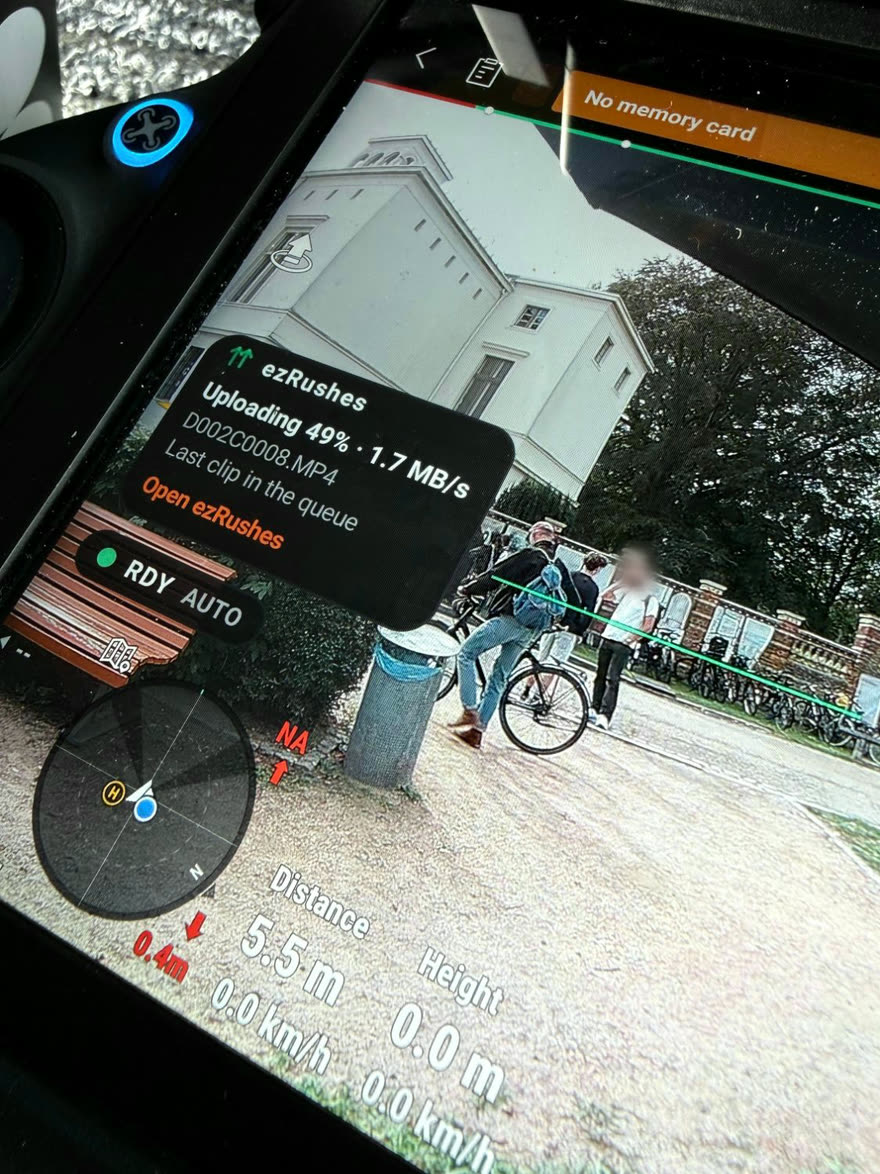
ezRushes runs on the DJI RC Plus and uploads every Inspire 3 take to your review portal while you are still in the air — with the camera values your DIT and director actually ask for.
What gets uploaded
While you record, DJI writes a low-res proxy of each clip on the RC Plus — around 6–9 Mbit/s H.264. ezRushes uploads that proxy as soon as the recording stops. The original stays on the Inspire 3’s media for post; nothing on the drone is touched.
Every clip knows how it was shot
ezRushes reads the camera values from the DJI Pilot 2 screen and attaches them to the clip: lens, iris, shutter angle, EI, white balance, resolution, codec and frame rate. In the portal they are filterable, so your client can find “all 35 mm takes at EI 800” in a second. The recording LUT shows its real name (D-Log).
Pilot and camera operator, one copy
On a two-operator Inspire 3, both remotes can run ezRushes. Before uploading, each remote checks your whole portal for the same recording: the faster one uploads it, the other one skips it — and the camera values always come from the remote that captured them, so the pilot’s remote never overwrites the operator’s.
The video link comes first
With the transmission on dual band (2.4 + 5.8 GHz) in DJI Pilot 2, uploads and the live feed don’t get in each other’s way. To rule it out completely, turn on “Upload only when drone is disarmed”: clips wait while the Inspire is armed and continue exactly where they stopped once it is back in standby.
Review in Rec.709
Your client doesn’t have to look at flat log footage: the portal player converts D-Log to Rec.709 with DJI’s official conversion, one click away. Select, Maybe, No and comments sit right next to the clip.
Set up in three steps
- Register and pick your portal address.
- Open ezrushes.com/install in the RC Plus browser and install the app.
- Pair the remote with the 6-character code — clips start flowing.
Also flying the Mavic series? See RC Pro 2 / Mavic 4 Pro and RC Pro / Mavic 3 — one account covers all your remotes.
Try it on your next shoot — Free needs no card, and the install takes about three minutes.
Start free See pricing Install guide